
Mobile App - Admin Instructions
We provide the ePanicbutton apps for Android and iPhones. Search these stores for "epanicbutton" and identify with our logo.
The app will only work if the profile information and phone number is added on the Users table of the admin portal dashboard.
2 ways to create a User: Manually or Bulk Spreadsheet Upload.
To Bulk Upload - see this page
Manually:
1) Click on Users Tab
2) Click on (+) sign at bottom left corner. The table will clear. Click the (+) sign again.
3) See the options to add Manually or Upload Excel / CSV
To create a single User, click on Enter Manually

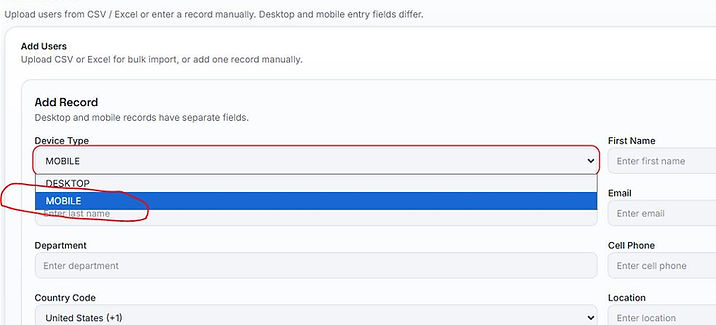
On form, click Dropdown menu Device Type : Select Mobile
Fill out appropriately.
Leave Location field blank.
For country Code, enter your country code. USA code is 1.
After clicking Add Record, you can review the information for accuracy.
Click Save Changes to add them to your Users Table.
The User is now able to install the app on their phone.
Mobile App - Users Instructions
The Mobile Device user record must be on the Users Table first as per instructions above.
1) Install the mobile app on the phone (Android and iPhone only)
Android
https://play.google.com/store/apps/details?id=com.workitsolveitapp.myapp
iPhone/apple
https://apps.apple.com/pk/app/epanicbutton/id6761066332
2) Allow for Notifications
3) Allow access to Location, at least while using the app
4) Enter the phone number
a) if server error, confirm the number is correct on the users table; enter it exactly as it on the profile
b) if warning about user already logged in, click Log Out (common during reinstall)
5) Click Submit and the app will be active.
There will be 3 tabs along the bottom of the app: Send Alert, Alert List and Profile
(examples below)


